Off the bat I want to make clear that I am the author of the Python package I’ll be presenting in this post. While I don’t make any money off use of this package and I do earnestly believe that it has a useful place; I am obviously biased in its favor, so just keep that in mind.
Sometimes it is the case that you have a dataset which changes over some dimension. As an example perhaps you have just run an n-body simulation using rebound or nbody6++ where you have test particles who’s position evolve over time. Perhaps you have evolved a stellar model using MESA, here there are any number of parameters which evolve with time. For both of these examples if you are only interested in how one parameter evolves with time the obvious way to visualize this is a scatter plot; looking at the radius of a star vs. age for example. However, often you might want to investigate how the relation between two variables changes with another; location on the Kiel diagram vs age. for example. In this case the best way to visualize becomes less clear. One could make a 3D plot but 3D plots are often awful; they are hard to read, hard to display, and hard to make. Another option, the option I will almost always argue in favor of, is to make a movie. In the Kiel diagram example each frame would show the surface gravity and effective temperature of the stellar model at one age, and as the movie played these frames you could see how the model moves through the kiel diagram.
There are plenty of tools to make animations out there, here I’m going to assume you are using python and matplotlib (or some library which uses matplotlib as a back-end such as seaborn). When making an animation, at the most basic level you have to think about what your frames are (hint: this is where I think that many tools over complicate things), they are the fundamental unit of your animation. Matplotlib has built in animation tools and they certainly let you make animations; however, go and read the documentation I linked, the use of these tools is non trivial. Often you have to dramatically refactor your code to use them and even then, for certain kinds of data, it is in no way clear how to fit the plotting routines into the mold of FuncAnimate. That’s where mplEasyAnimate comes into play.
mplEasyAnimate
mplEasyAnimate is a python package which builds animations off an arbitrary list of matplotlib figure objects. Its focus is on easy of use and generality. That means I’ve written it with the goal of allowing animations to be made with the smallest possible changes to your existing, non-animated, code. Let’s build up a simple example..
You can plot a sine wave quite easily
import numpy as np
import matplotlib.pyplot as plt

sine = lambda x, t, A, k, w, p: A*np.sin(k*x-w*t+p)
x = np.linspace(-2*np.pi, 2*np.pi, 1000)
y = sine(x, 0, 1, 1, 1, 0)

fig, ax = plt.subplots(1, 1)
ax.plot(x, y)
ax.show() # not needed if following along in jupyter
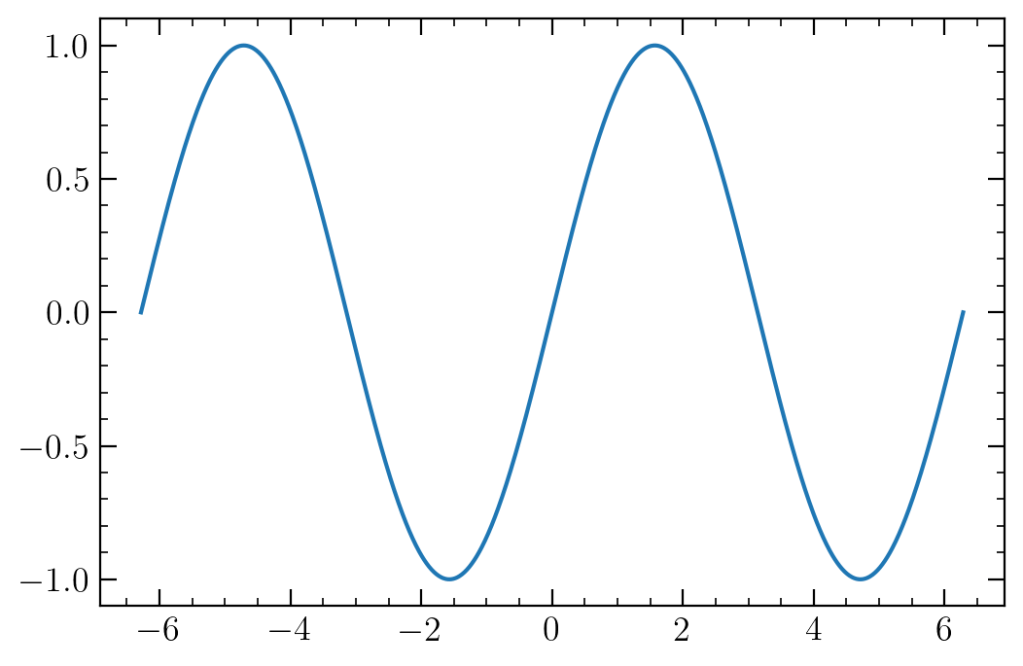
Now what if we wanted to animate this so that the sine wave moved with time? Well we have already defined the sine function in such a way that it varies with time so all we would have to do, from a mathematical perspective, would be to allow t to increase. We could imagine making a flip-book of images, each one with a slightly increased t value. mplEasyAnimate makes such an animation almost trivial to produce:
import numpy as np
import matplotlib.pyplot as plt
from mplEasyAnimate import animation

sine = lambda x, t, A, k, w, p: A*np.sin(k*x-w*t+p)
times = np.linspace(0, 10, 600)

with animation("AnimatedSineWave.mp4", fps=60) as anim:
    for t in times:
        x = np.linspace(-2*np.pi, 2*np.pi, 1000)
        y = sine(x, t, 1, 1, 1, 0)

        fig, ax = plt.subplots(1, 1)
        ax.plot(x, y)
        anim.add_frame(fig)
        plt.close(fig) # prevents overuse of memory

Once this finishes running there will be a file called AnimateSineWave.mp4 which you can play and will show the sine wave moving to the right. Note how the actual plotting code did not change at all, all we did was add some code to, 1, open the animation, and 2, add the frame to the animation. This is the basic principal of mplEasyAnimate, plot whatever you want in a figure and then add it to the animation as the next frame; making a flip-book of figures.
Now a couple things to note…mplEasyAnimate is not fast. I’ve spent time optimizing it as much as I reasonably can; however, intrinsic to its design (namely the generality of being able to use any figure as the next frame) is that it needs to have matplotlib render an entire figure from scratch for every single frame. If what you need are animations that generate quickly, and you can figure out the magic words to use FuncAnimate that’s a better bet. Personally, I have found it universally faster to wait for mplEasyAnimate to render than to spend the time reworking code for FuncAnimate….Python vs. C comes to mind as an apt comparison here.
If you want some visual indication of how the animation is going, might I recommend using a progress bar! An example of the same code above but with a progress bar might look like
import numpy as np
import matplotlib.pyplot as plt
from mplEasyAnimate import animation
from tqdm import tqdm

sine = lambda x, t, A, k, w, p: A*np.sin(k*x-w*t+p)
times = np.linspace(0, 10, 600)

with animation("AnimatedSineWave.mp4", fps=60) as anim:
    for t in tqdm(times):
        x = np.linspace(-2*np.pi, 2*np.pi, 1000)
        y = sine(x, t, 1, 1, 1, 0)

        fig, ax = plt.subplots(1, 1)
        ax.plot(x, y)
        anim.add_frame(fig)
        plt.close(fig)
So, before wrapping up, to jump back to the Kiel diagram example I opened this post with, here is an example of what that might look like; I hope this can inspire you to think of places where you can slot animations into your data analysis and/or science communication.

mplEasyAnimate can be installed with pip via:
$ pip install mplEasyAnimate
 AstroBugs